> For the complete documentation index, see [llms.txt](https://docs.powerembedded.com/llms.txt). Markdown versions of documentation pages are available by appending `.md` to page URLs; this page is available as [Markdown](https://docs.powerembedded.com/reports-portal/most-common-issues/cannot-load-model-capacity-limits/how-to-restart-and-change-capacity-in-azure.md).
# How to restart and change capacity via Azure
{% hint style="warning" %}
Use this option only if someone from the Power Embedded support team has instructed you to do so.
{% endhint %}
## Restart the Capacity in Azure
Access the [**Azure Portal.**](https://portal.azure.com/#browse/Microsoft.Fabric%2Fcapacities)
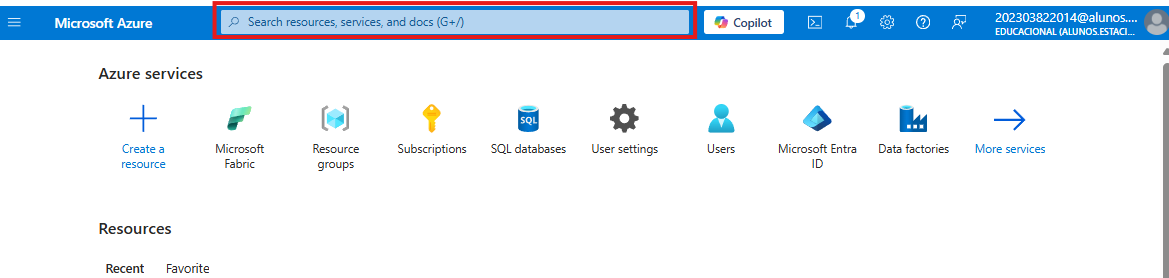
In the main menu, go to the search bar and search for **Microsoft Fabric**.
Select the **Microsoft Fabric** resource from the results list.
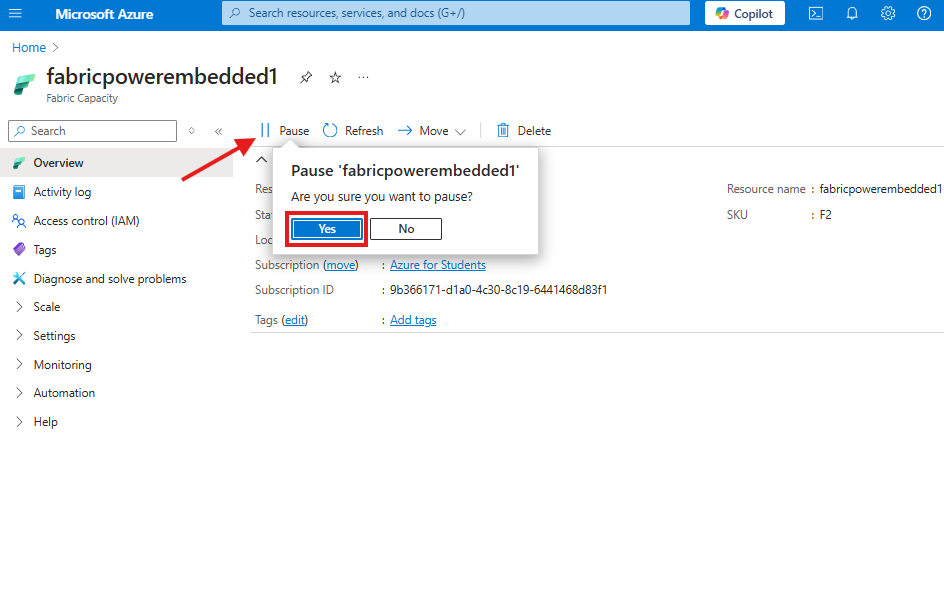
On the resource overview screen, click **Pause** to pause the resource.
Confirm the action by clicking **"Yes"**.
To restart the resource, click **Resume** and confirm the operation by clicking **"Yes"**.
After these steps, the resource will be activated and your reports will return to working normally.
{% hint style="warning" %}
In some scenarios, it may be necessary to increase the capacity SKU. To perform this process through Azure, follow the step below. Keep in mind that changing the capacity SKU affects costs.
{% endhint %}
## Increase the Capacity in Azure
In the [Azure Portal](https://portal.azure.com/#browse/Microsoft.Fabric%2Fcapacities), search for **Microsoft Fabric** in the search bar and select the resource.
On the resource overview screen, go to the **Scale** section.
Click **Change Size** to access the SKU selection menu.
Select the desired SKU to increase the capacity.
After performing this process, the capacity SKU will be changed.