> For the complete documentation index, see [llms.txt](https://docs.powerembedded.com/llms.txt). Markdown versions of documentation pages are available by appending `.md` to page URLs; this page is available as [Markdown](https://docs.powerembedded.com/administration-portal/settings/parameters/general-customizations.md).
# General customizations
By expanding this menu, you can see some features and parameters for changing Power Embedded's behavior. Below we'll take a closer look at their functions.
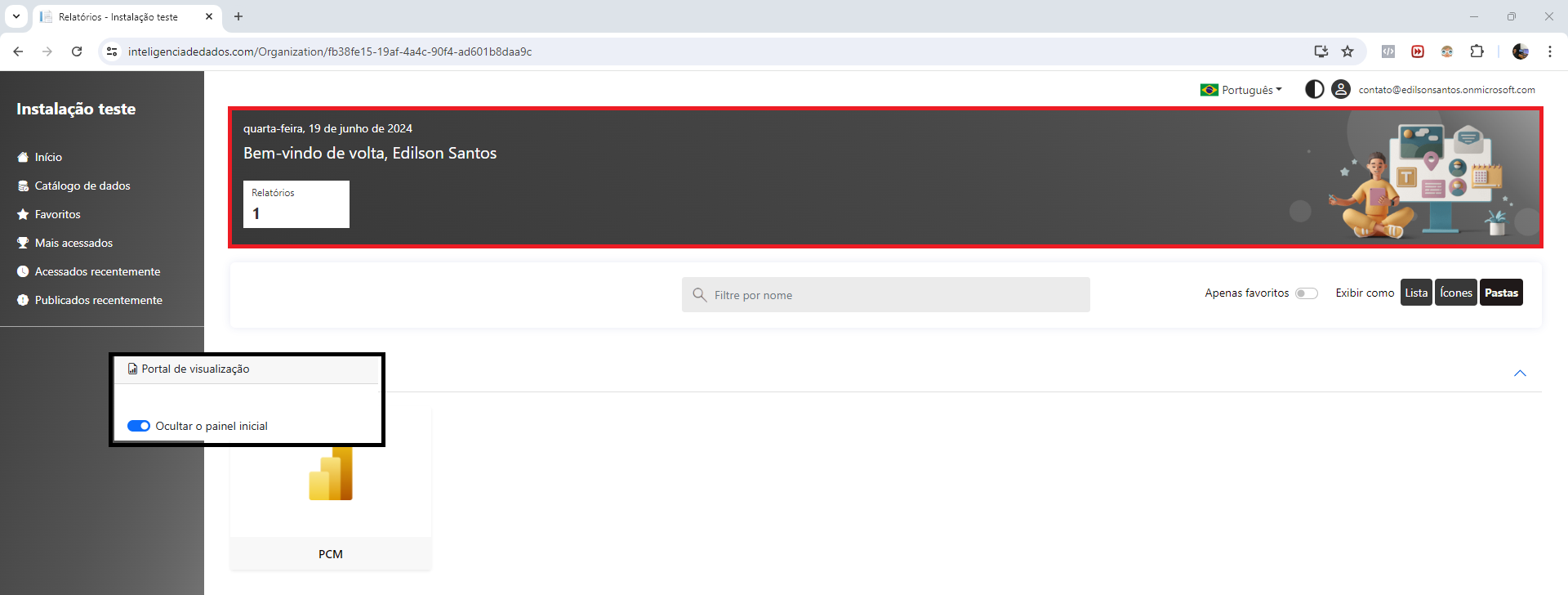
## Hide the start panel
Enabling this feature hides the view panel with the Welcome message.
### Open reports in a new tab
By enabling this feature, your report will open in another browser tab by default.
### Default report view type
Power Embedded allows you to define the default view that the user will have when accessing the portal, which can have 3 options:
* **Folders**: Shows reports organized and grouped by folder and type, allowing navigation in folders and subfolders for better organization. This mode displays a thumbnail of the reports.
* **Icons**: Shows all the reports on a single screen, without pagination and regardless of folder, workspace or type. This is a simpler view for those who have reports in many workspaces and folders and find it difficult to locate them. This mode displays a thumbnail of the reports.
* **List**: A view similar to that of Power BI, and like the Icon view, it also shows all the reports on a single screen, without pagination and regardless of folder, workspace or type. It's a simpler view for those who have reports in many workspaces and folders and find it difficult to locate them, and because it doesn't show the report thumbnail, it loads faster on slow connections.
Here is an example to show the difference between each type of view.
Visualização de Pastas
Visualização de Ícones
Visualização de Lista
{% hint style="info" %}
This parameter is used to define the default view type, when the user has not yet defined which type they prefer to view.
Once the user has selected the type of view they want, when they click on one of the options below, the portal will respect the user's preference by overriding this parameter.\
\
.png?alt=media)
{% endhint %}
### Folder display type
In Power Embedded, you can choose the type of folder view in the reports portal.
Below is a practical example of the difference between the 2 types:
Pastas no modo "Retângulo pequeno"
Pastas no modo "Cartão"
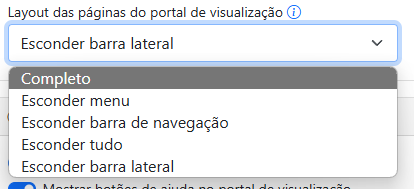
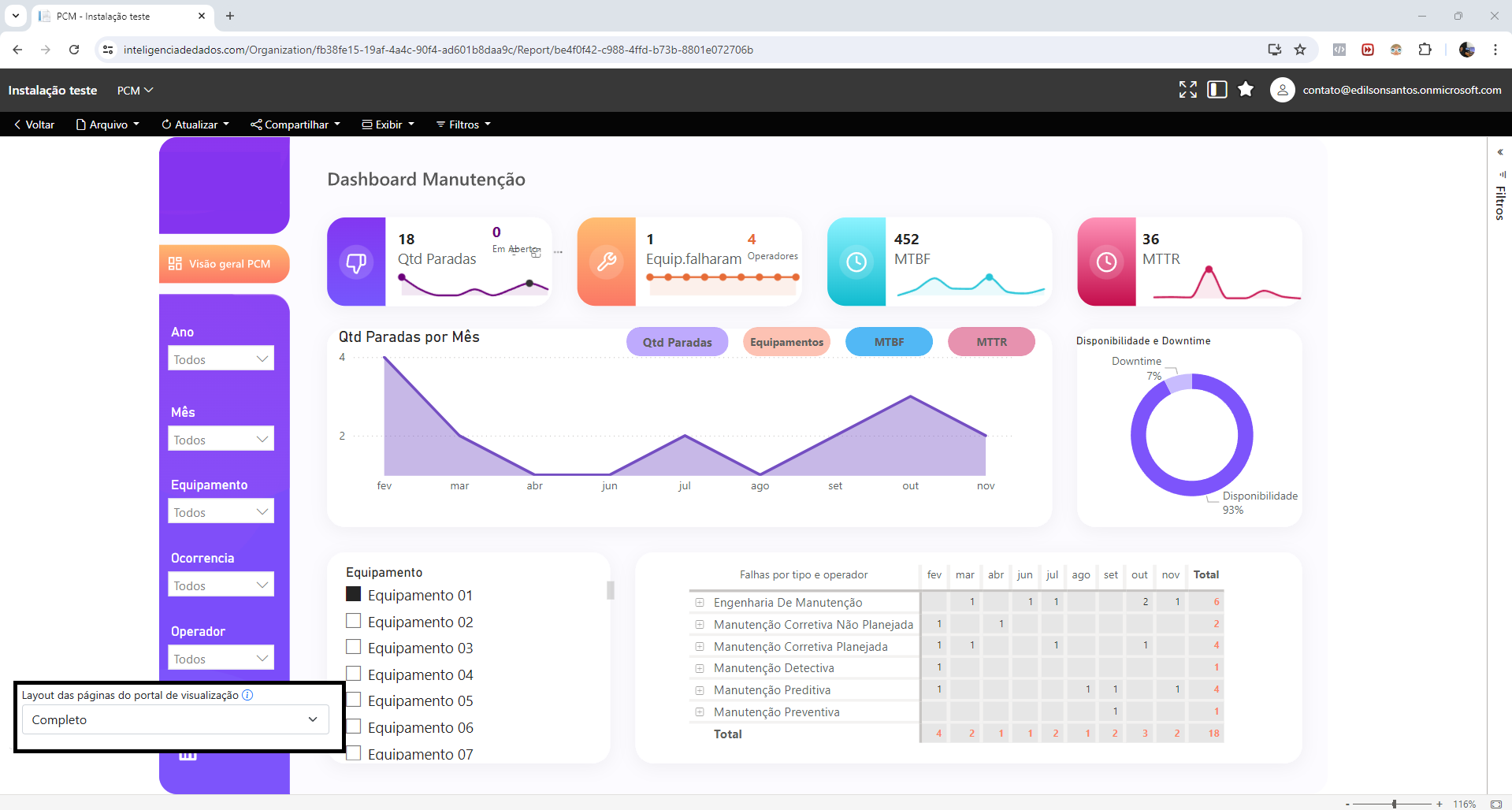
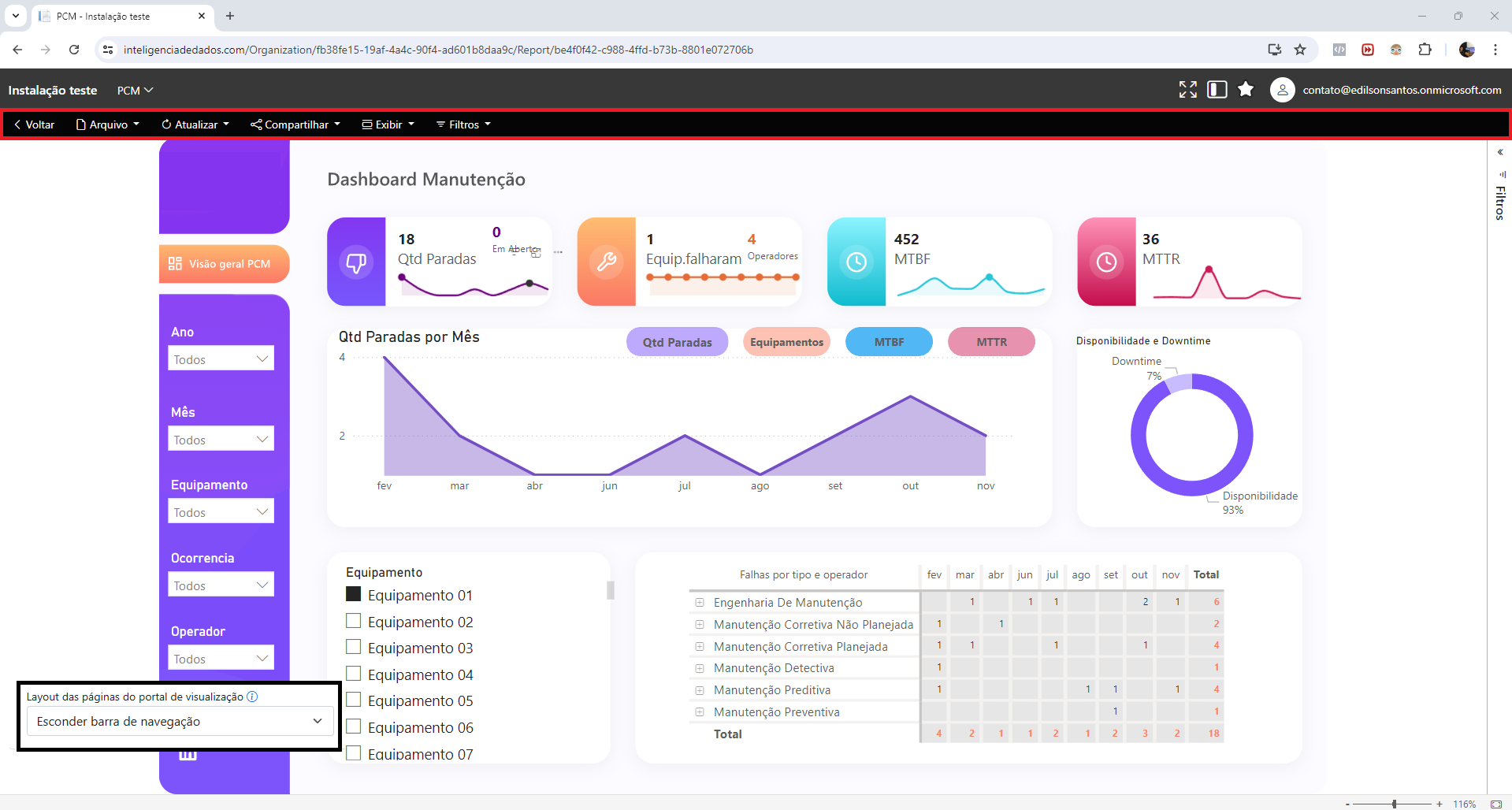
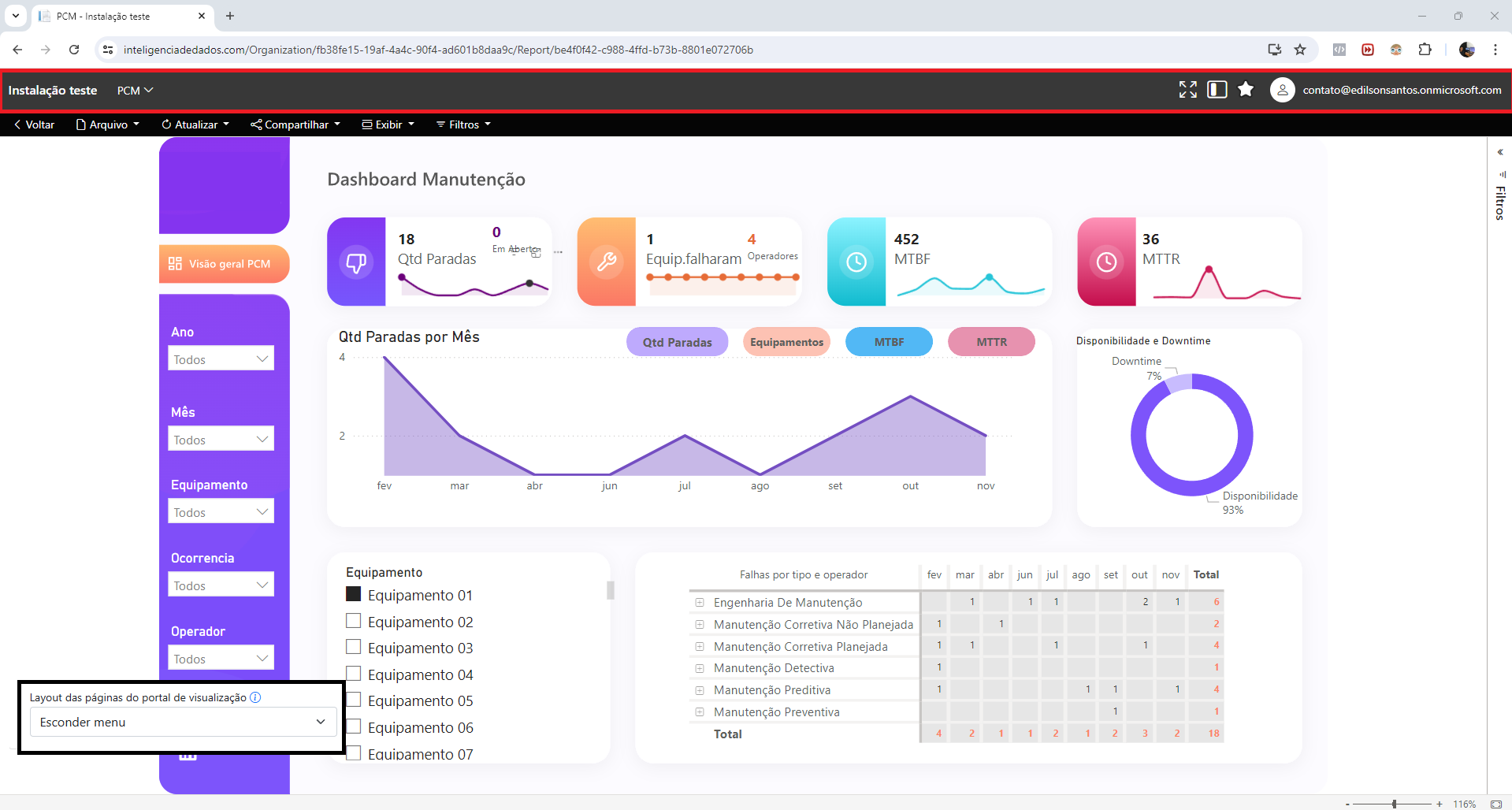
### Layout of the viewport pages
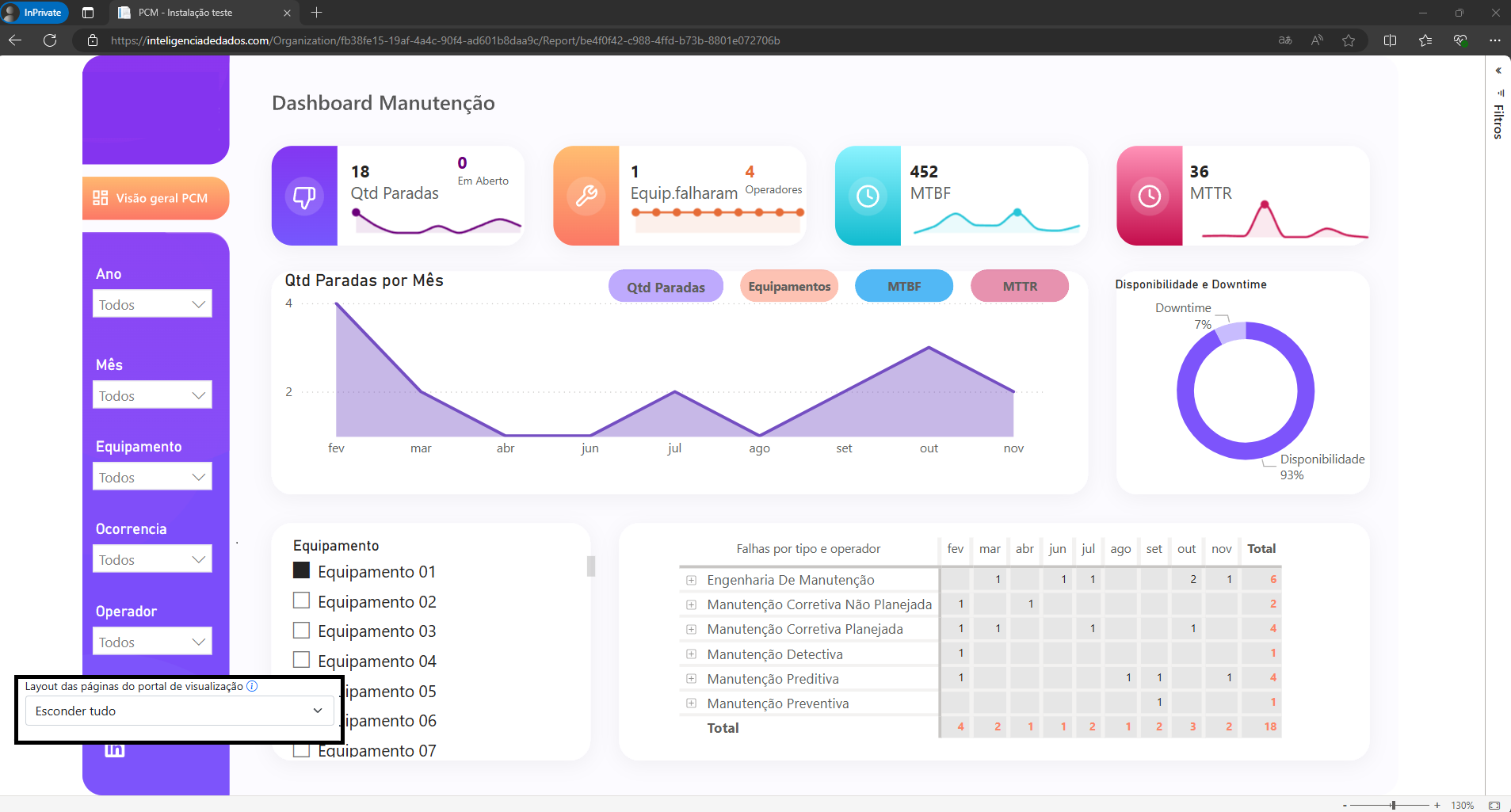
This drop-down allows you to define which elements will be displayed on the screen within the viewport and a report.
Below is each element that will be hidden.
**Complete:** All elements are available on the screen.
**Hide Menu:**
**Hide navigation bar:**
**Hide everything:**
**Hide sidebar:**
### Help buttons
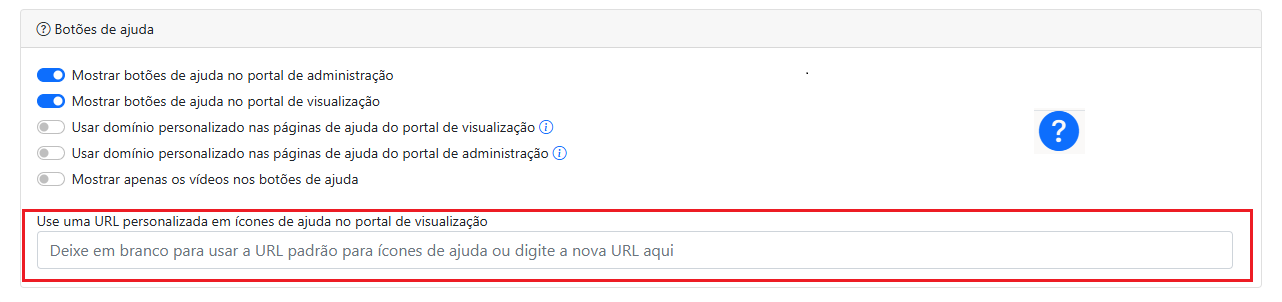
To offer an even better user experience, the portal includes a help button available on every page. This button provides access to comprehensive and detailed documentation on Power Embedded.
If you want to redirect the user to a specific page, you can set up a link for this. By inserting a URL into a help link, you can guarantee that when the user clicks on it, they will automatically be directed to the page they want, such as an internal company page.
Both portals have a help button on every screen for users to use if they have any questions.
However, the client can also control how best to use these functionalities. Always thinking of offering a personalized solution for the client, we offer redirects to our help portal.
In addition, the client can set up a domain for this.

%20(2).png?alt=media)
%20(2).png?alt=media)
%20(2).png?alt=media)
%20(1).png?alt=media)
.png?alt=media)
.png?alt=media)