> For the complete documentation index, see [llms.txt](https://docs.powerembedded.com/llms.txt). Markdown versions of documentation pages are available by appending `.md` to page URLs; this page is available as [Markdown](https://docs.powerembedded.com/administration-portal/settings/login-screen/authentication-methods.md).
# Authentication methods
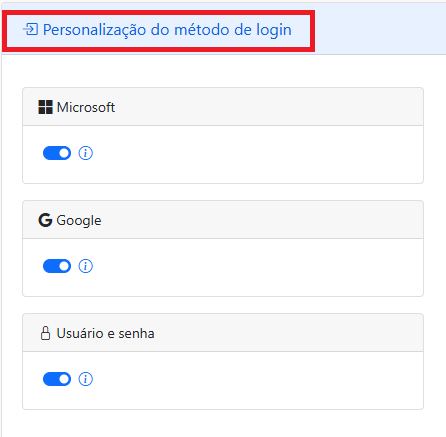
### Customization of the login method
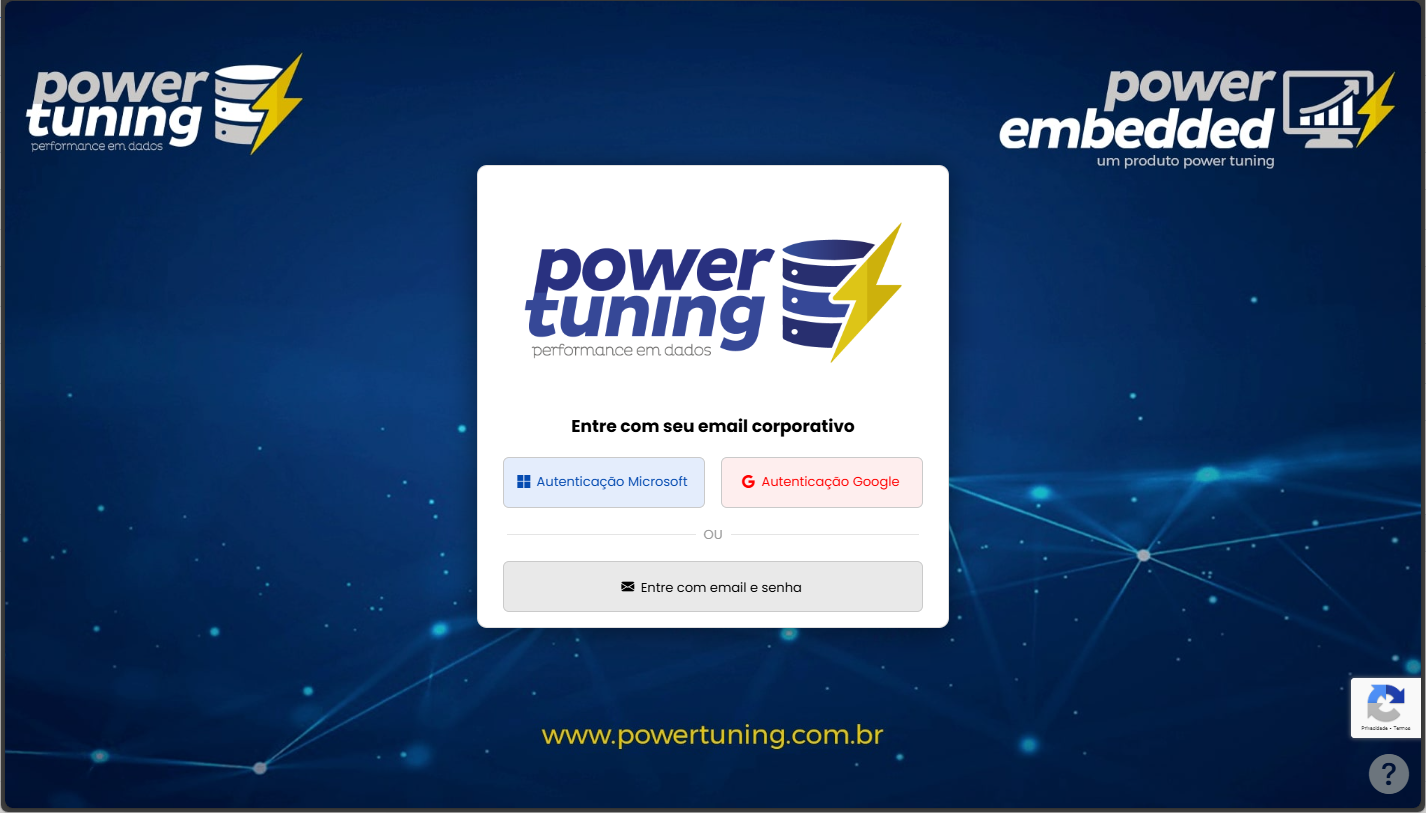
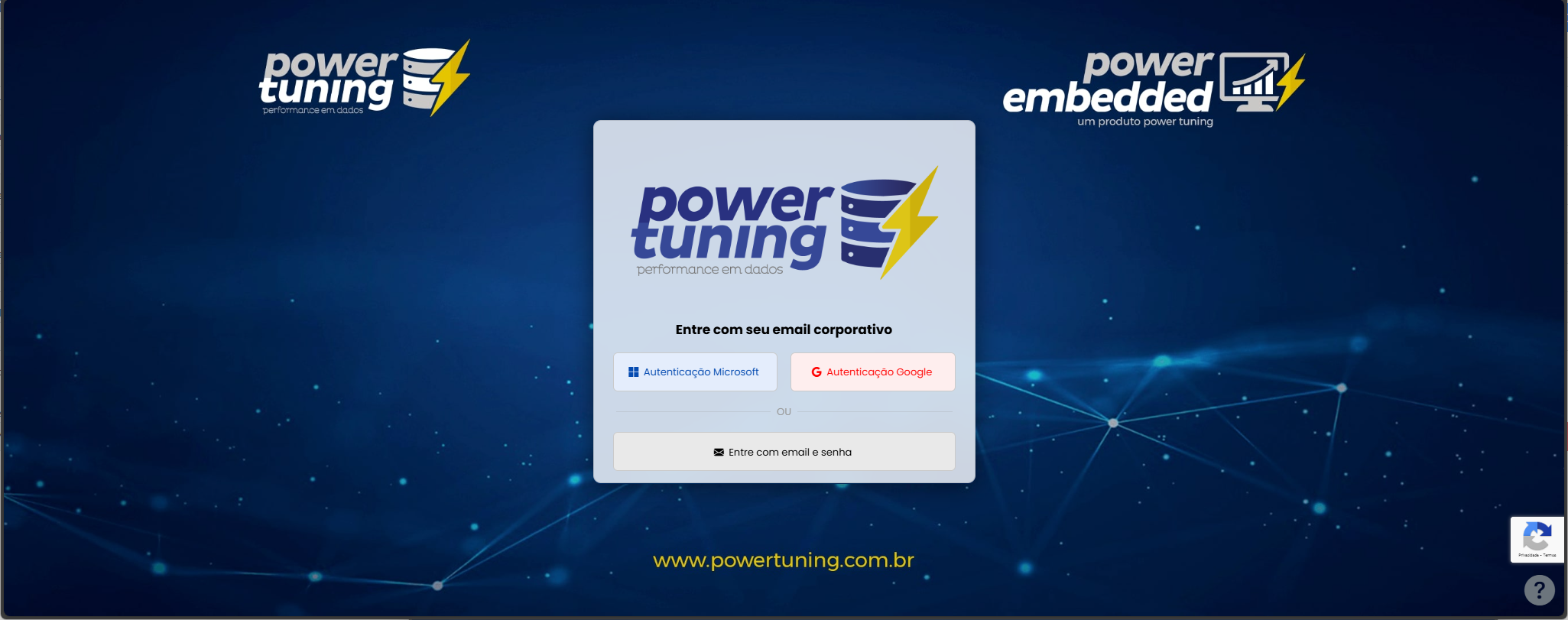
Power Embedded supports three authentication methods, and you can choose which ones will be enabled and displayed on the login screen.
If you block an authentication method, no user will be able to log in using that method, and it will not appear on the login screen.
If this authentication method is enabled, it will be shown on the login screen, but you can block it at the user level so that a specific user cannot use this authentication method.
### Change layout opacity
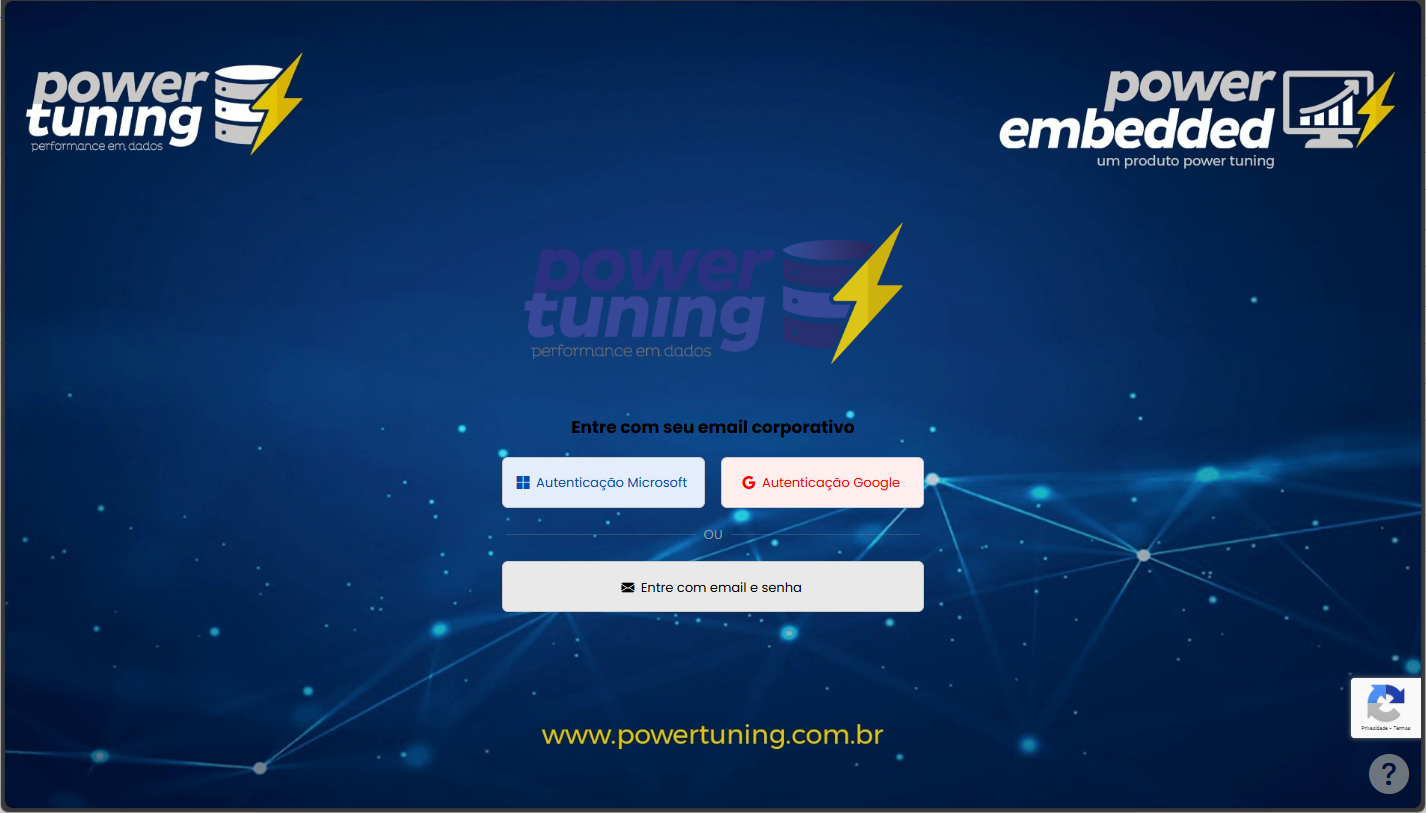
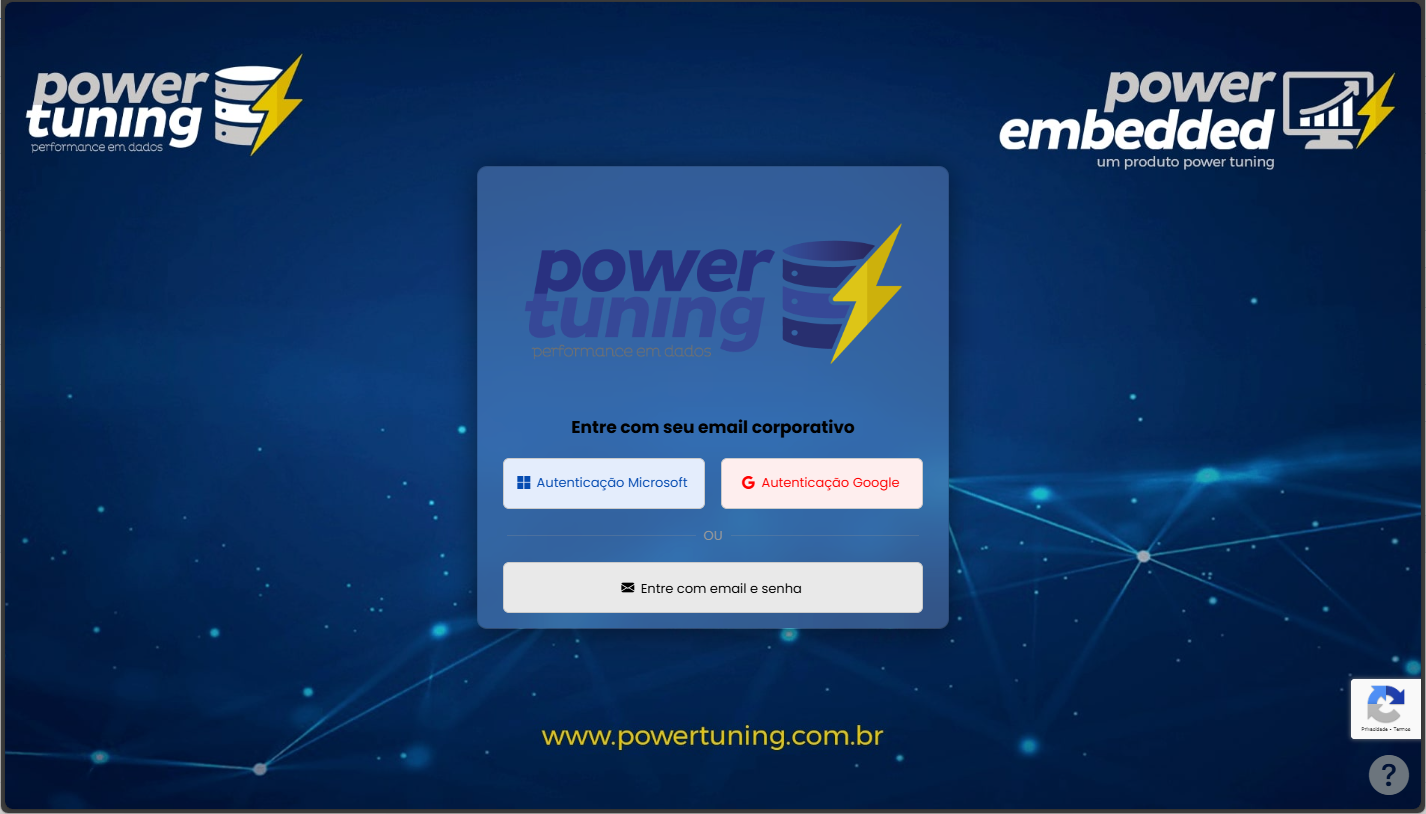
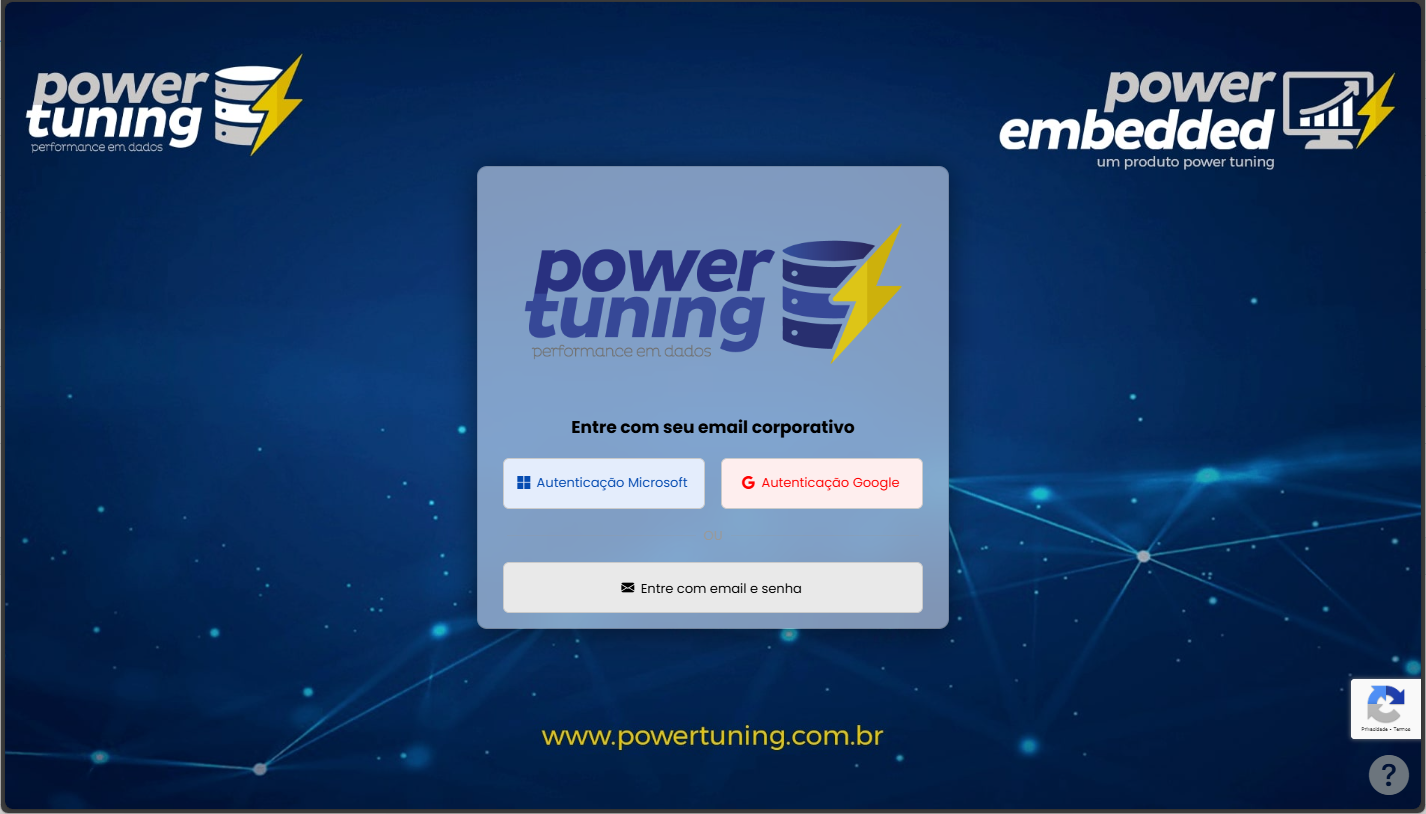
Setting that allows you to define how transparent the login screen will be.
0% Opacity
20% Opacity
50% Opacity
100% Opacity
{% hint style="info" %}
If you set the opacity level to 100%, transparency will be disabled. Setting it to 0%, the login screen will be fully transparent
{% endhint %}
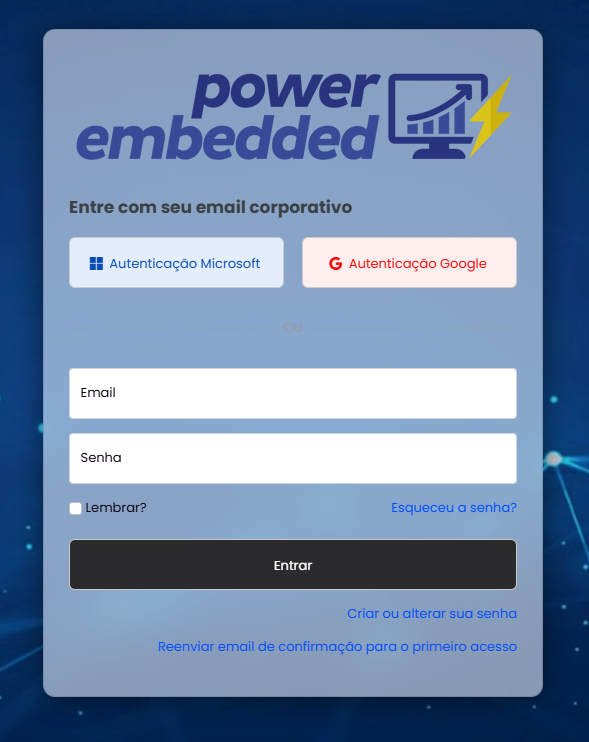
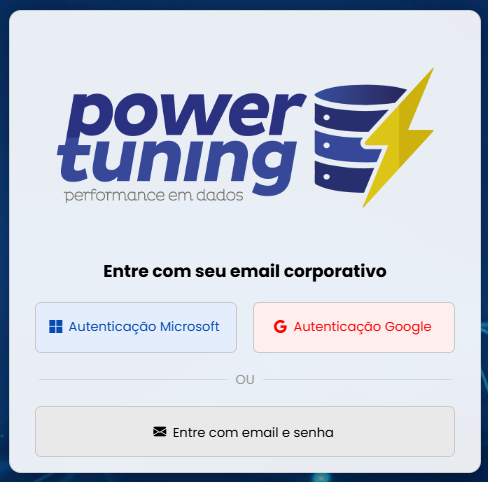
### Always expand username/password options
Option that allows the username/password fields to be automatically expanded on the login screen.
Opção marcada
Opção desmarcada
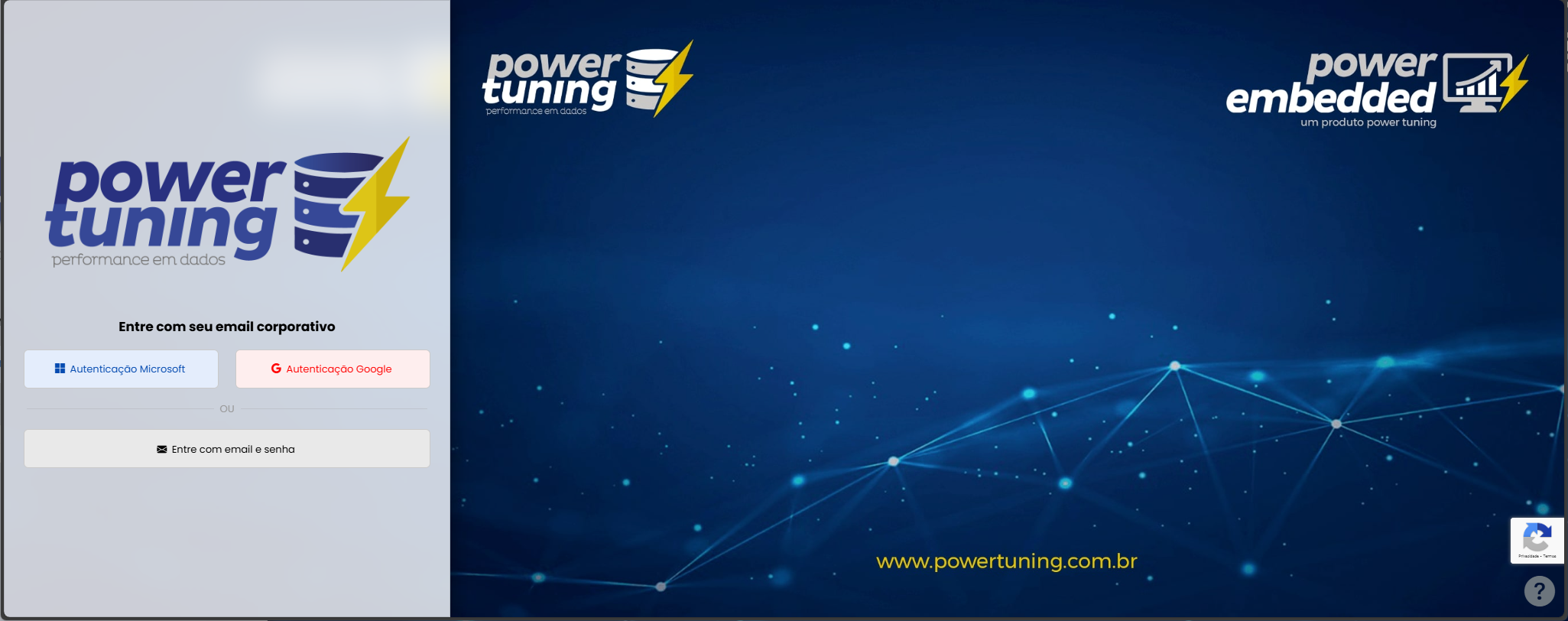
### Login page layout
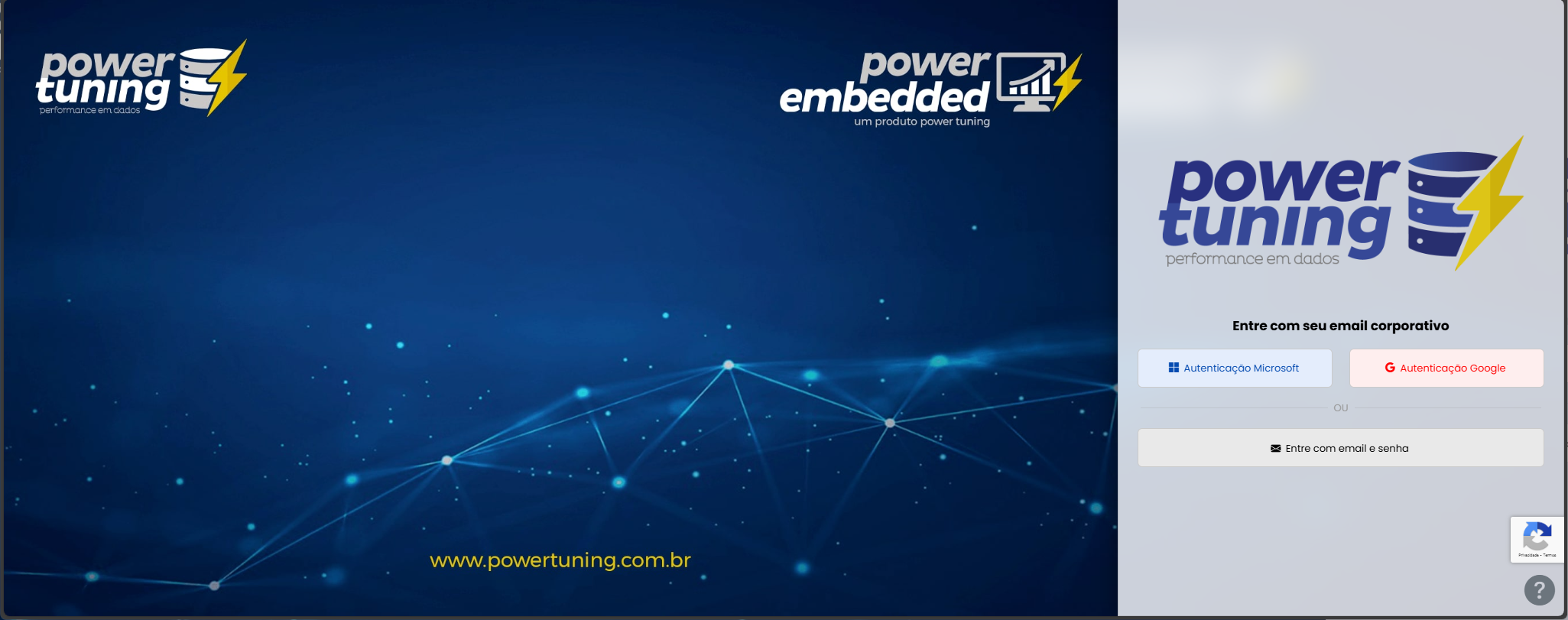
Option that allows you to configure the login page layout according to your preference.